
.webp)
Sticky Dates Integration
How to Integrate Your Sticky Dates Printer With an App
Last Updated: October 1, 2024
- About the Sticky Dates integration
- Generating an Integration Credential key
- How to integrate with Cooking the Books or Drinking the Profits
- How to revoke access to the Sticky Dates printer
About the Sticky Dates integration
You can print directly to your Sticky Dates printer from external applications such as Cooking the Books or Drinking the Profits.
Secure access can be granted by generating an Integration Credential from within your Sticky Dates account and sharing this key with the external application.
Generating an Integration Credential key
Begin by logging in to your Sticky Dates account and opening the desired Outlet:
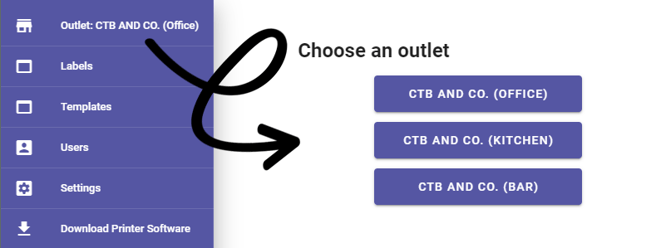
Please Note: Each Outlet contains its own unique Integration Credential key.
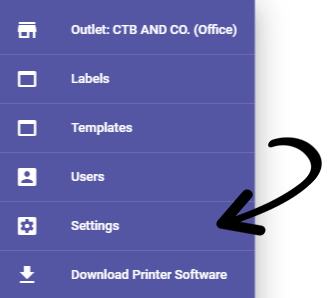
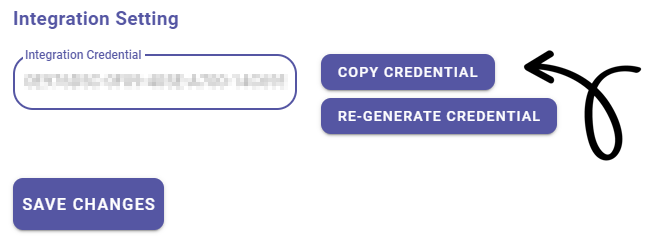
Once logged in, navigate to the Settings page and locate the Integration Setting section:
Click Copy Credential, and then paste it in the relevant field within the application you wish to integrate with.
How to integrate with Cooking the Books or Drinking the Profits
After you have clicked Copy Credential on Sticky Dates, jump to the relevant Outlet on Cooking the Books or Drinking the Profits.
From the Admin heading, navigate to the Settings page:
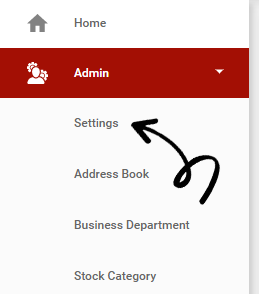
Go to the Sticky Dates Integration tab and paste the Integration Credential key into the Integration Credential field, then click Save:
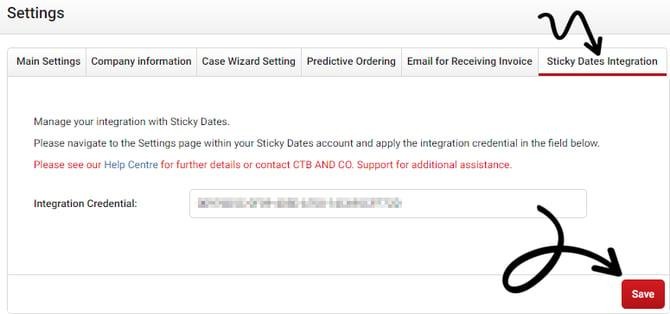
To print from Cooking the Books or Drinking the Profits check out our help article Printing Sticky Dates Labels From a Recipe Card.
How to revoke access to the Sticky Dates printer
If you believe your Integration Credential key has been improperly used, you should revoke access from all external applications.
To do this you must generate a new key by clicking Re-Generate Credential:
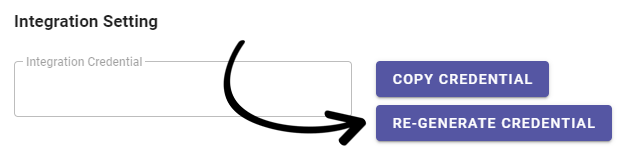
Once your new key has been generated, click Save Changes to apply the new key.
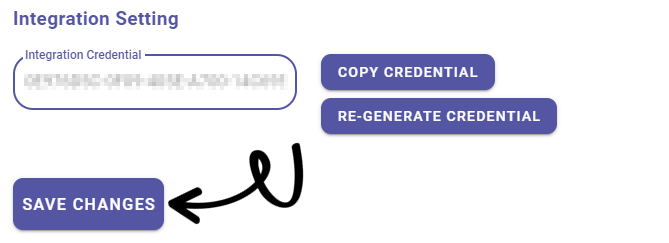
All external apps using the old key will no longer have access to your printer.
To update the external apps to use the new key, click Copy Credential and paste the new key into the relevant field.